Cybersecurity Tips for Remote Workers Using Personal Devices (2026)
Your laptop has your company's client database open in one tab and your kid's Minecraft world in another. Your phone receives Slack notifications alongside your teenager's Instagram alerts. Your tablet holds both quarterly financial reports and your Netflix login. Welcome to the reality of remote work in 2026. The office didn't just move to your house — it merged with your entire personal life on the same screens, the same networks, and the same devices your family shares. This creates a security problem that didn't exist when everyone worked in a corporate building with IT-managed hardware. Your employer's data now lives on a device you also use to browse Reddit, download apps, and let your children play games. Every personal habit on that device becomes a potential entry point into your company's systems. This guide focuses specifically on the unique risks of using personal devices for remote work — the gaps that standard cybersecurity advice doesn't cover. Why Personal Devices Are a Bigger Risk Than Company-Issued Hardware When your employer gives you a corporate laptop, their IT department controls what software runs on it, what websites it can access, and what security patches it receives. The device exists solely for work. Your personal device is the opposite. You control everything. That freedom is exactly what makes it dangerous in a work context. The three core vulnerabilities of BYOD (Bring Your Own Device): Mixed data environments. Work files, personal photos, banking apps, and your child's school portal all coexist on the …
Your laptop has your company’s client database open in one tab and your kid’s Minecraft world in another. Your phone receives Slack notifications alongside your teenager’s Instagram alerts. Your tablet holds both quarterly financial reports and your Netflix login.
Welcome to the reality of remote work in 2026. The office didn’t just move to your house — it merged with your entire personal life on the same screens, the same networks, and the same devices your family shares.
This creates a security problem that didn’t exist when everyone worked in a corporate building with IT-managed hardware. Your employer’s data now lives on a device you also use to browse Reddit, download apps, and let your children play games. Every personal habit on that device becomes a potential entry point into your company’s systems.
This guide focuses specifically on the unique risks of using personal devices for remote work — the gaps that standard cybersecurity advice doesn’t cover.
Why Personal Devices Are a Bigger Risk Than Company-Issued Hardware
When your employer gives you a corporate laptop, their IT department controls what software runs on it, what websites it can access, and what security patches it receives. The device exists solely for work.
Your personal device is the opposite. You control everything. That freedom is exactly what makes it dangerous in a work context.
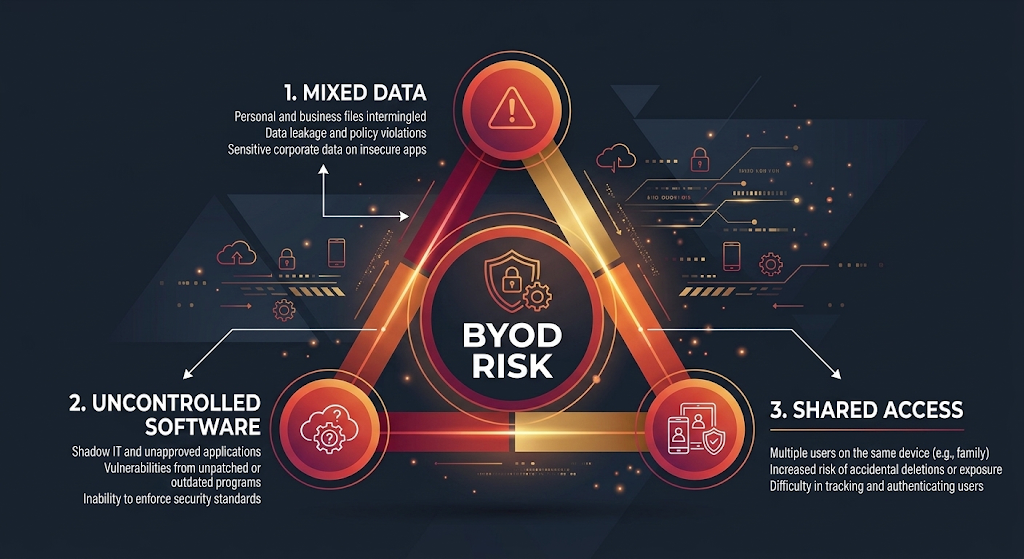
The three core vulnerabilities of BYOD (Bring Your Own Device):
Mixed data environments. Work files, personal photos, banking apps, and your child’s school portal all coexist on the same storage. If malware infects your device through a personal app, it can access work documents just as easily as your vacation photos.
Uncontrolled software. You install whatever you want — browser extensions, mobile games, PDF converters, free utilities. Each one is a potential vulnerability. A malicious browser extension can read everything you type, including work credentials and confidential emails. Corporate IT would block these installations. On your personal device, nobody stops you.
Shared physical access. Your spouse borrows your laptop to check email. Your child uses your tablet for homework. A family member plugs an unknown USB drive into your computer to charge their phone. Every person who touches your device is a potential security gap that doesn’t exist with a locked-down corporate machine.
7 Remote Work Security Practices Specific to Personal Devices
1. Separate Work and Personal Activity With Device Profiles or Containers
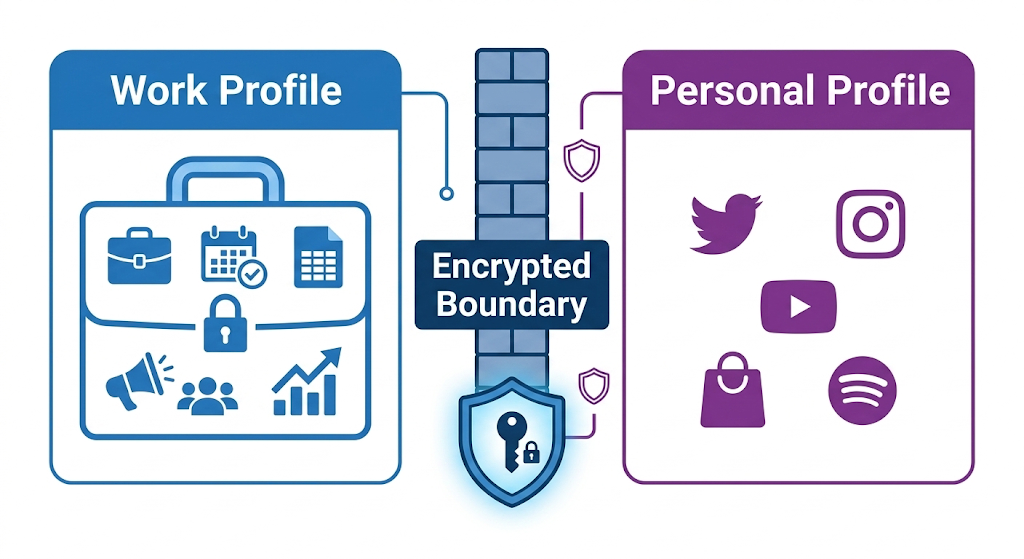
The most impactful step you can take is creating a clear boundary between work and personal use on the same physical device.
On Windows 11: Create a separate local user account for work. Log into your work profile during business hours and your personal profile after. Each profile has its own desktop, files, browser history, and installed applications. Work data stays isolated from personal activity.
On macOS: Use separate user accounts or take advantage of Apple’s Focus Modes to restrict which apps and notifications are active during work hours. macOS Sonoma and later versions also support separate workspaces in Mission Control for visual separation.
On mobile devices: Use your phone’s built-in work profile feature. Android’s Work Profile (available on most devices running Android 12+) creates an encrypted container that isolates work apps and data from your personal side. iOS offers Managed Apple IDs through Apple Business Manager, which your employer can configure to separate work data.
Why this matters: If your personal side gets infected with malware from a sketchy app download, the work container’s encryption and isolation make it significantly harder for the malware to reach company data. It’s not a perfect wall, but it raises the barrier enough to stop most opportunistic attacks.
2. Understand What Your Employer Can and Cannot See on Your Device
Remote workers often have two competing fears: that their employer is spying on everything they do, or that their employer has no visibility into security risks on their device. The reality in 2026 falls somewhere in between, and understanding the specifics matters for both your privacy and your security.
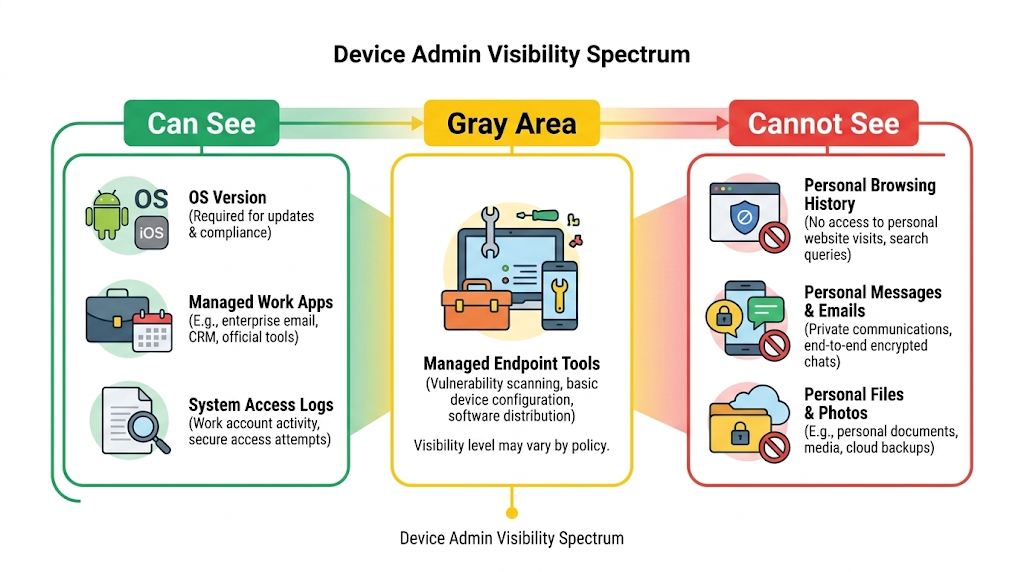
What employers typically CAN monitor through MDM (Mobile Device Management) or endpoint agents:
Whether work-specific apps are installed and updated
Work email and file access logs
Network connection details when you’re connected to company resources
What employers typically CANNOT see:
Your personal browsing history
Personal messages and photos
Personal app usage
Your personal files and documents
The gray area: Some endpoint security tools (like CrowdStrike, SentinelOne, or Microsoft Defender for Endpoint) installed at your employer’s request may have broader system-level access than you realize. Before installing any company-mandated security software on your personal device, read the installation agreement and ask your IT department exactly what data the tool collects. You have the right to know.
Practical tip: If your employer requires invasive monitoring software that you’re uncomfortable with on your personal device, ask whether they’ll provide a dedicated work machine instead. Many companies have shifted to offering corporate hardware specifically to avoid BYOD privacy conflicts.
3. Lock Down Your Home Network for Remote Work
Your home Wi-Fi is now your office network. It deserves more protection than it got when you only used it for streaming and browsing.
Beyond the basics remote workers should take these additional steps:
Enable your router’s built-in firewall. Most home routers have a firewall feature that’s disabled by default. Log into your router’s admin panel and turn it on. This blocks unsolicited incoming connections from the internet.
Disable UPnP (Universal Plug and Play). UPnP lets devices on your network automatically open ports through your firewall. It’s convenient for gaming consoles but creates security holes that attackers can exploit. Disable it in your router settings.
Use a dedicated work VLAN if your router supports it. Higher-end home routers (like those from ASUS, Netgear, or Ubiquiti) let you create virtual networks that isolate your work devices from your personal IoT gadgets. This prevents a compromised smart thermostat from reaching your work laptop.
Check your router’s connected devices list monthly. Review every device connected to your network. If you see something you don’t recognize, investigate immediately. Unauthorized devices on your network could indicate a neighbor piggybacking on your Wi-Fi or a compromised IoT device.
4. Secure Your Video Conferencing Setup
Video calls are the backbone of remote work, and they introduce specific risks that didn’t exist in the conference room era.
Meeting hijacking (uninvited participants joining your calls) remains a problem in 2026, particularly on platforms that allow public meeting links. An attacker who obtains your meeting URL can join the call, record sensitive discussions, or share malicious links in the chat.
Protective measures:
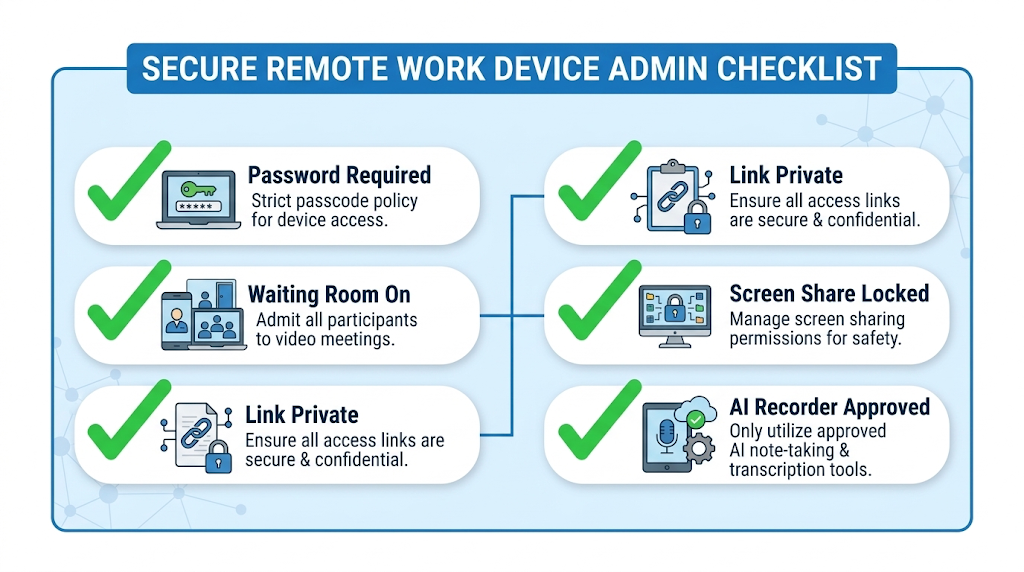
Always require a meeting password or waiting room approval for external participants.
Don’t share meeting links on public social media or open Slack channels. Send them directly to attendees via email or private message.
Lock the meeting once all expected participants have joined.
Disable screen sharing for participants unless someone needs to present. The host should control who can share.
Be cautious with AI meeting assistants and transcription tools. Many remote workers now use AI note-takers (like Otter.ai, Fireflies.ai, or built-in Copilot features in Microsoft Teams) that join calls and record conversations. Verify that your employer’s compliance policy permits these tools, especially if you discuss confidential client information or regulated data.
5. Manage Cloud Storage and File Sharing Carefully
Remote work means your files live in the cloud — Google Drive, OneDrive, Dropbox, Box, or your company’s SharePoint. This is convenient but introduces access control risks that don’t exist with files stored on a local office server.
Common mistakes remote workers make:
Sharing sensitive work folders via personal cloud accounts instead of company-approved storage
Leaving shared links set to “anyone with the link can view” indefinitely
Downloading confidential files to local storage on a personal device where they persist after you leave the company
Syncing work cloud storage to a personal device that family members also use
Best practices:
Use only your employer’s approved cloud storage for work files. Don’t upload company documents to your personal Google Drive or Dropbox, even temporarily.
Set expiration dates on all shared links. A link that was appropriate to share with a client last quarter shouldn’t remain active indefinitely.
Review your shared folder permissions quarterly. Revoke access for people who no longer need it — former contractors, past clients, colleagues who changed roles.
Enable two-factor authentication on your cloud storage accounts. This is non-negotiable for any account containing work data.
6. Protect Your Device in Shared and Public Spaces
Remote work doesn’t always mean working from home. Coffee shops, co-working spaces, libraries, and airport lounges are popular remote work locations — and each one introduces physical security risks.
Shoulder surfing is the simplest and most overlooked threat. Someone sitting behind you at a coffee shop can read your screen, capture your passwords as you type them, or photograph confidential documents. Use a privacy screen filter on your laptop when working in public. These thin films narrow the viewing angle so only the person directly in front of the screen can read it.
Never leave your device unattended, even for a minute. A locked laptop can still be stolen, and a thief with physical access to your hardware can attempt to bypass encryption or extract data from the storage drive.
Disable automatic Wi-Fi connections on your devices. Your laptop and phone should not automatically join any open network they detect. An attacker can set up a fake Wi-Fi hotspot with a legitimate-sounding name (“Starbucks_Free_WiFi”) and intercept all your traffic the moment your device connects.
Use your phone’s hotspot instead of public Wi-Fi when possible. Your cellular connection is encrypted and far harder to intercept than a shared public network.
7. Plan for Device Loss, Theft, and Offboarding
Two scenarios that remote workers rarely prepare for: your device gets lost or stolen, and you leave your job.
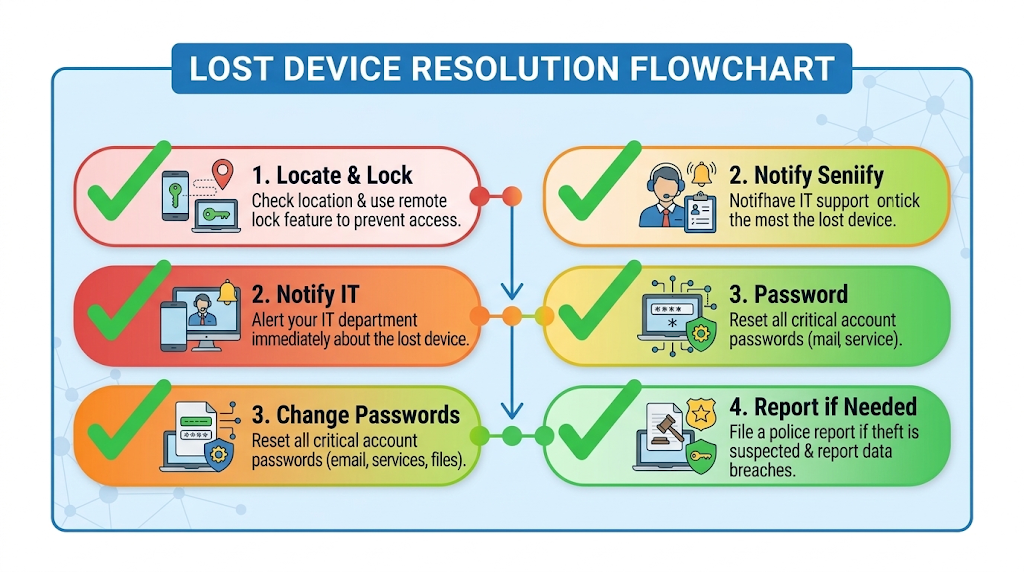
If your personal device containing work data is lost or stolen:
Use Find My iPhone, Find My Device (Android), or Find My Device (Windows) to locate, lock, or remotely wipe the device immediately.
Notify your employer’s IT department so they can revoke your access tokens and remove the device from their MDM system.
Change passwords for all work accounts you accessed from that device.
If the device contained sensitive client data, your employer may have legal obligations to report the breach under state data breach notification laws.
When you leave your job:
Ask your IT department exactly which company data, apps, and certificates are on your personal device and how to remove them.
Don’t assume that uninstalling a work app deletes all associated data. Cached files, downloaded documents, and synced cloud folders may persist in locations you can’t easily find.
Request a formal offboarding checklist from your employer. In 2026, many companies use automated offboarding tools that remotely wipe work containers from personal devices without touching your personal data.
The Family Factor: Securing Shared Devices
If your spouse, children, or roommates use the same devices you use for work, the attack surface multiplies significantly.
Set up individual user accounts for every family member on shared computers. Your child should never be logged into your admin account where they could accidentally install malware or access your work files.
Use parental controls on devices your children use. Beyond content filtering, parental controls prevent unauthorized app installations and restrict access to settings that could compromise security.
Establish a “no work device” rule for children if possible. The safest approach is to keep work devices physically separate from the devices your kids use for school and entertainment. If that’s not feasible, the user profile separation discussed earlier becomes essential.
Educate your household about basic security habits. Your family members don’t need to become cybersecurity experts, but they should know not to click suspicious links, not to download apps from unofficial sources, and not to plug unknown USB drives into any computer in the house.
Frequently Asked Questions
Can my employer legally require me to install security software on my personal device?
In most U.S. states, yes — if accessing company systems is a condition of your employment, your employer can require you to meet minimum security standards on the device you use to access those systems. However, they generally cannot demand unrestricted access to your personal data. If you’re uncomfortable with the level of monitoring required, ask your employer to provide a dedicated work device instead.
Is it safe to use my personal phone for work email and Slack?
It can be, provided you’ve enabled a work profile or container that isolates work apps from your personal data, enabled MFA on all work accounts, and set a strong device passcode with biometric authentication. The risk increases if you share your phone with family members or install untrusted apps on the same device.
Do I need a separate internet connection for work?
For most remote workers, no. A properly secured home network with WPA3 encryption, a strong password, and a separate guest network for IoT devices provides adequate protection. A separate connection may be warranted if you handle highly classified or regulated data (healthcare, defense, financial services) where your employer’s compliance requirements mandate network isolation.
What should I do if I accidentally opened a suspicious link on my work device?
Disconnect the device from the internet immediately. Do not enter any credentials or download any files prompted by the page. Notify your employer’s IT or security team right away — they’d rather respond to a false alarm than discover a breach weeks later. Run a full antivirus scan once IT gives you the all-clear.
How often should I review my remote work security setup?
Conduct a quick security check every quarter. Review your connected devices, update your router firmware, audit your cloud sharing permissions, and verify that your work profile separation is still functioning correctly. Set a calendar reminder for January, April, July, and October.