Cybersecurity for Beginners: The Complete Guide to Staying Safe Online in 2026
You lock your front door when you leave the house. You don't hand your wallet to strangers. You shred documents with your Social Security number on them. But online, you probably reuse the same password across half your accounts, click links in emails without checking the sender, and haven't updated your laptop's operating system in months. The gap between how carefully you protect your physical life and how carelessly you treat your digital one is exactly where cybercriminals operate. And in 2026, they're more sophisticated, more automated, and more aggressive than ever. This guide is for people who know they should be doing more but don't know where to start. No jargon. No fear-mongering. No "install these 15 tools" lists that overwhelm you before you've finished the first paragraph. Just the fundamental cybersecurity for beginners practices that actually protect you, explained in plain English. By the end, you'll have a clear, actionable understanding of the threats you face and the specific steps to defend against them. What Is Cybersecurity? Cybersecurity is the practice of protecting your devices, accounts, data, and privacy from unauthorized access, theft, or damage by people or software that shouldn't have them. That's it. Every article, product, and policy in this field exists to solve variations of one problem: keeping bad actors out of your digital life. The "bad actors" range from automated bots scanning the internet for vulnerable devices to organized criminal groups running ransomware operations to individual scammers sending you a fake Amazon delivery email. …
You lock your front door when you leave the house. You don’t hand your wallet to strangers. You shred documents with your Social Security number on them.
But online, you probably reuse the same password across half your accounts, click links in emails without checking the sender, and haven’t updated your laptop’s operating system in months.
The gap between how carefully you protect your physical life and how carelessly you treat your digital one is exactly where cybercriminals operate. And in 2026, they’re more sophisticated, more automated, and more aggressive than ever.
This guide is for people who know they should be doing more but don’t know where to start. No jargon. No fear-mongering. No “install these 15 tools” lists that overwhelm you before you’ve finished the first paragraph. Just the fundamental cybersecurity for beginners practices that actually protect you, explained in plain English.
By the end, you’ll have a clear, actionable understanding of the threats you face and the specific steps to defend against them.
What Is Cybersecurity?
Cybersecurity is the practice of protecting your devices, accounts, data, and privacy from unauthorized access, theft, or damage by people or software that shouldn’t have them.
That’s it. Every article, product, and policy in this field exists to solve variations of one problem: keeping bad actors out of your digital life.
The “bad actors” range from automated bots scanning the internet for vulnerable devices to organized criminal groups running ransomware operations to individual scammers sending you a fake Amazon delivery email. The motivations vary — money, data, disruption, espionage — but the defense fundamentals are the same regardless of who’s attacking.
The 2026 Threat Landscape: What Actually Targets Regular People
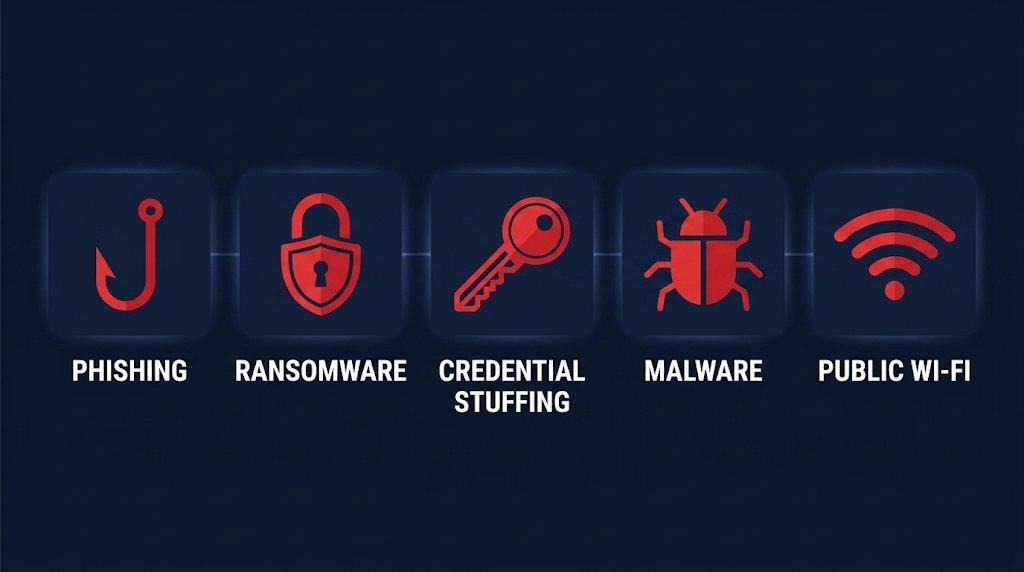
You don’t need to understand every type of cyberattack. You need to understand the ones most likely to target you personally. Here are the five threats that most frequently affect everyday users and small businesses in 2026.
1. Phishing and AI-Powered Social Engineering
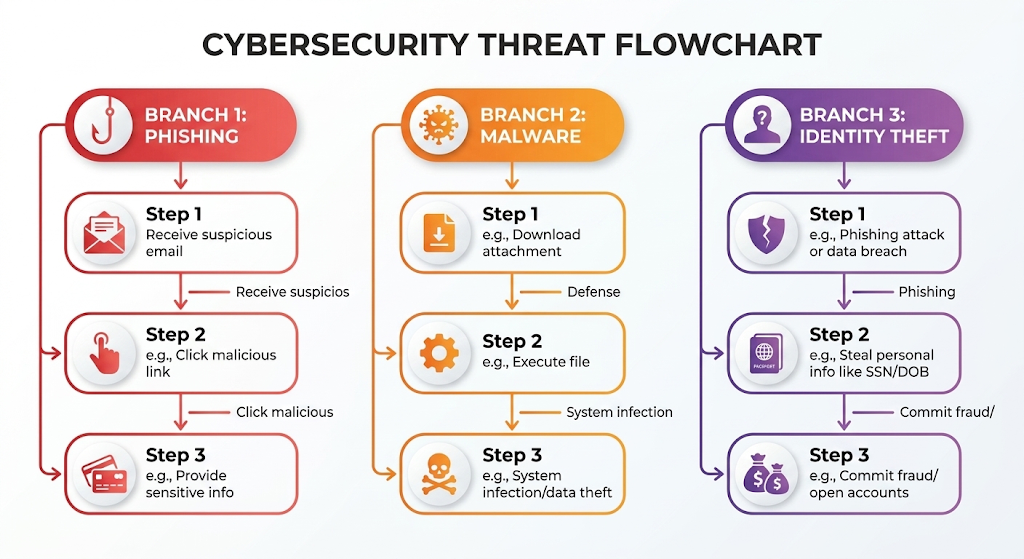
Phishing remains the single most common attack vector against individuals. The basic concept hasn’t changed: someone sends you a message pretending to be a trusted source (your bank, Netflix, your boss) and tricks you into clicking a link, downloading an attachment, or revealing a password.
What has changed dramatically is the quality. In 2026, attackers use AI to generate phishing emails that are grammatically perfect, contextually personalized, and nearly indistinguishable from legitimate messages. The days of spotting phishing by looking for typos and broken English are over.
AI-generated phishing messages reference your real name, your actual recent purchases, and your correct account details — information scraped from data breaches and public social media profiles.
Deepfake voice and video scams have also emerged as a serious threat. Criminals use AI-generated audio to impersonate family members or executives in phone calls, requesting urgent money transfers or sensitive information. If someone calls you claiming to be a relative in distress and asks for money, verify through a separate communication channel before acting.
2. Ransomware
Ransomware encrypts your files and demands payment (usually in cryptocurrency) to unlock them. In 2026, ransomware gangs increasingly use a “double extortion” model: they steal your data before encrypting it, then threaten to publish it publicly if you don’t pay. This means even if you have backups and can restore your files, the attackers still have leverage.
Small businesses and individuals are targeted more frequently than large corporations because they’re less likely to have robust defenses and more likely to pay quickly out of desperation.
3. Credential Stuffing
When a company you’ve used suffers a data breach, your email and password combination ends up in databases that criminals buy and sell on the dark web. Automated bots then try that same email/password combination across hundreds of other websites — banking, email, shopping, social media — hoping you reused the password.
This is why password reuse is the single most dangerous habit you can have online. One breach at a minor website you forgot about can compromise your most important accounts.
4. Malware and Spyware
Malware is any software designed to harm your device or steal your data. In 2026, the most common delivery methods are malicious email attachments, fake software downloads, compromised browser extensions, and infected USB drives. Spyware — a subset of malware — silently monitors your keystrokes, screenshots, and browsing activity to capture passwords and financial information.
5. Public Wi-Fi Interception
Unsecured public Wi-Fi networks (coffee shops, airports, hotels) allow attackers on the same network to intercept your unencrypted data. This includes login credentials, messages, and browsing activity. While HTTPS encryption has made this harder than it used to be, it’s still a real risk on networks that don’t require a password to join.
The 8 Fundamental Practices That Protect You
Everything else in cybersecurity builds on these eight habits. Master these before you worry about anything else.
Practice 1: Use Long, Unique Passwords for Every Account
The National Institute of Standards and Technology (NIST) updated its password guidelines to reflect what security researchers have known for years: length matters more than complexity, and forced periodic rotation actually weakens security.
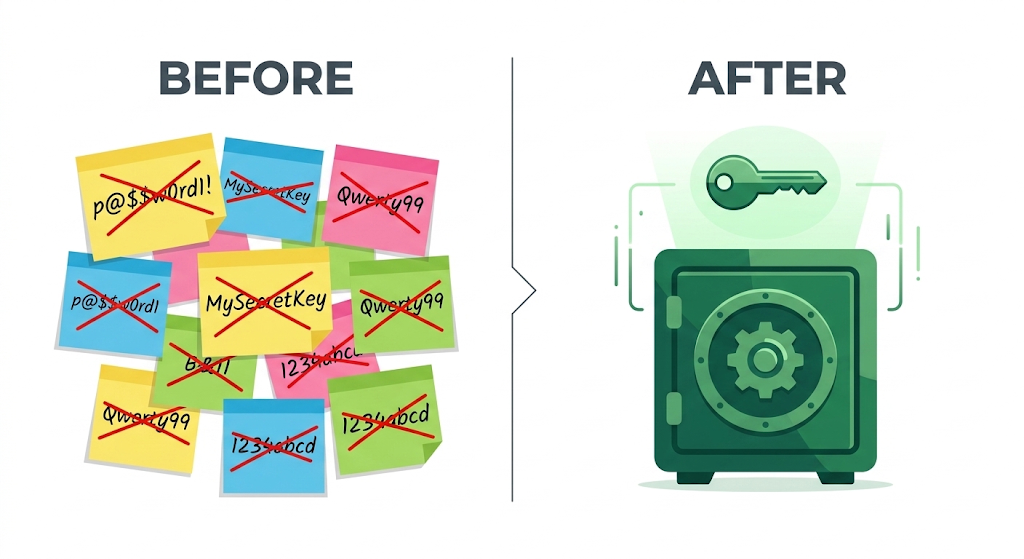
A password like “correct-horse-battery-staple” (four random words separated by hyphens) is stronger and easier to remember than “P@ssw0rd1!” — and it’s far harder for automated cracking tools to break.
The non-negotiable rules:
Every account gets a unique password. No exceptions. No variations. No “Password123” for one site and “Password124” for another.
Aim for at least 14 characters. Longer is always better.
Never include personal information (birthdays, pet names, street addresses) that could be found on your social media.
Change a password only if you suspect the account has been compromised or the service has suffered a breach.
The practical solution: Use a password manager. Tools like Bitwarden (free and open-source), 1Password, or Dashlane generate, store, and autofill unique passwords for every account. You remember one master password; the manager handles the rest. This eliminates the “I can’t remember 100 different passwords” objection entirely.
Practice 2: Enable Multi-Factor Authentication (MFA) Everywhere
MFA adds a second verification step beyond your password. Even if a criminal steals your password through a breach or phishing attack, they can’t access your account without the second factor.
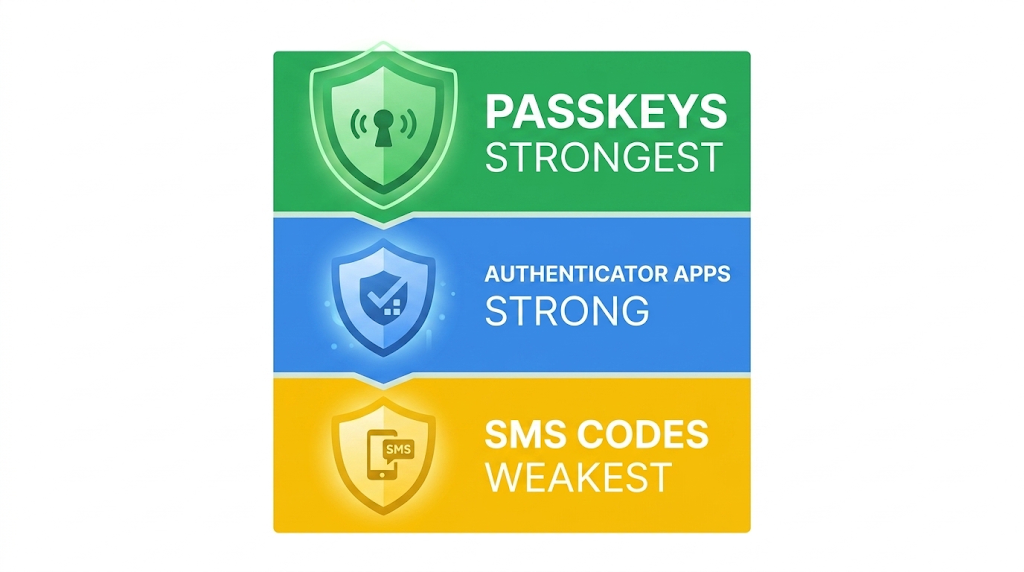
The three types of MFA, ranked from strongest to weakest:
Passkeys (strongest, emerging standard in 2026). Passkeys use your device’s biometric authentication (fingerprint, face recognition) or PIN to verify your identity. They’re phishing-resistant because there’s no code to intercept. Apple, Google, and Microsoft all support passkeys through the FIDO2 standard, and adoption is accelerating rapidly across major websites in 2026. If a service offers passkeys, use them.
Authenticator apps (strong). Apps like Google Authenticator, Microsoft Authenticator, or Authy generate time-based codes on your phone that change every 30 seconds. These are significantly more secure than SMS codes because they can’t be intercepted through SIM-swapping attacks.
SMS text codes (weakest, but still better than nothing). The code arrives via text message. This is vulnerable to SIM-swapping (where an attacker convinces your carrier to transfer your phone number to their device), but it’s still far better than having no MFA at all. If SMS is the only option a service offers, enable it.
Priority accounts for MFA: Email (your email is the master key to password resets for every other account), banking and financial services, cloud storage, social media, and any account containing personal or business data.
Practice 3: Recognize and Reject Phishing Attempts
Since AI has made phishing emails nearly indistinguishable from legitimate messages, you need a verification process rather than relying on gut instinct.
The verification checklist before clicking any link or opening any attachment:
Check the sender’s actual email address, not just the display name. “support@amaz0n-security.com” is not Amazon.
Hover over links (don’t click) to see the actual destination URL. If the email claims to be from your bank but the link points to a random domain, it’s phishing.
Never click links in unsolicited messages that create urgency (“your account will be suspended in 24 hours”). Legitimate organizations don’t pressure you this way. Go directly to the company’s website by typing the URL into your browser.
Verify unexpected requests through a separate channel. If your “boss” emails you asking for an urgent wire transfer, call them on a known phone number to confirm.
Be skeptical of attachments you weren’t expecting, even from people you know. Their account may have been compromised.
Practice 4: Keep All Software Updated
Software updates aren’t just about new features. They patch security vulnerabilities that criminals actively exploit. When a company releases a security patch, the vulnerability it fixes becomes public knowledge, which means attackers immediately start targeting devices that haven’t been updated yet.
What to update and how often:
Operating system (Windows, macOS, iOS, Android): Enable automatic updates. Don’t defer them for more than a few days.
Web browsers (Chrome, Firefox, Edge, Safari): These update automatically by default. Don’t disable this.
Apps and software: Enable auto-update wherever possible. For apps that don’t auto-update, check for updates monthly.
Router firmware: Most people never update their home Wi-Fi router. Log into your router’s admin panel (usually 192.168.1.1) quarterly and check for firmware updates. Your router is the gateway between the internet and every device in your home.
Practice 5: Back Up Your Data Regularly
Backups are your last line of defense against ransomware, hardware failure, and accidental deletion. If your files are backed up, a ransomware attack becomes an inconvenience rather than a catastrophe.
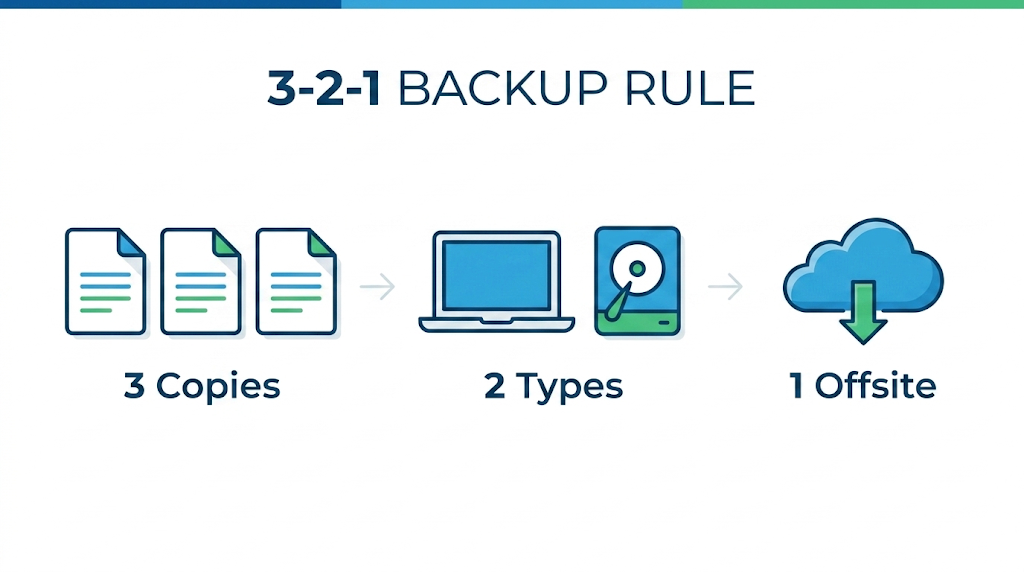
The 3-2-1 backup rule:
3 copies of your important data (the original plus two backups)
2 different storage types (e.g., your computer’s drive plus an external hard drive)
1 copy stored offsite or in the cloud (e.g., Backblaze, Google Drive, iCloud)
Critical detail: Your backup should be disconnected from your primary device when not actively backing up. If ransomware infects your computer and your external drive is plugged in, the ransomware will encrypt the backup too. Use scheduled backups that connect, copy, and disconnect automatically.
Practice 6: Secure Your Home Network
Your home Wi-Fi network is the foundation of your digital security. If it’s compromised, every connected device is at risk.
Essential steps:
Change the default router admin password. The default credentials (often “admin/admin”) are publicly documented and the first thing attackers try.
Use WPA3 encryption if your router supports it. If not, WPA2-AES is the minimum. Never use WEP or WPA-TKIP — both are broken and trivially crackable.
Create a separate guest network for visitors and IoT devices (smart speakers, cameras, thermostats). IoT devices are notoriously insecure, and isolating them on a guest network prevents a compromised smart bulb from giving an attacker access to your laptop.
Disable remote management on your router unless you specifically need it. This feature lets you access your router’s settings from outside your home network, which also means attackers can try to access it.
Change the default network name (SSID) to something that doesn’t identify you personally. “SmithFamilyHome” tells an attacker exactly whose data is behind that network.
Practice 7: Be Careful What You Share on Social Media
Social media profiles are goldmines for attackers building phishing campaigns or guessing security questions. Your birthdate, pet’s name, mother’s maiden name, high school, and vacation schedule are all data points that can be used to compromise your accounts.
Practical guidelines:
Set your profiles to private or friends-only where possible.
Don’t post your location in real time. Post vacation photos after you return home.
Avoid participating in “fun” quizzes that ask for personal details (“What was your first car?” “What’s your superhero name based on your birth month?”). These are often data-harvesting operations.
Review your privacy settings on every platform at least twice a year. Platforms frequently change their defaults after updates.
Practice 8: Use a VPN on Public Wi-Fi
When you connect to public Wi-Fi at a coffee shop, airport, or hotel, your data travels through a network you don’t control. A Virtual Private Network (VPN) encrypts all traffic between your device and the VPN server, making it unreadable to anyone else on the network.
When to use a VPN:
Any time you’re on a public or semi-public Wi-Fi network
When accessing sensitive accounts (banking, email, healthcare) on any network you don’t fully trust
When a VPN is less critical:
On your secured home network (your WPA3 encryption already protects you)
When browsing sites that use HTTPS (the padlock icon in your browser), which encrypts the connection between your browser and the website. Most major sites use HTTPS by default in 2026.
Choosing a VPN: Look for a provider with a verified no-logs policy, strong encryption (AES-256), and a kill switch that blocks all internet traffic if the VPN connection drops. Reputable options include Mullvad, ProtonVPN, and IVPN. Avoid free VPNs — they typically monetize by collecting and selling your browsing data, which defeats the purpose.
What to Do If You’ve Been Compromised
Even with strong defenses, breaches happen. Here’s the immediate response plan.
If you suspect a phishing attack succeeded and you entered your credentials:
Change the password for the compromised account immediately from a different device.
Enable MFA on that account if it wasn’t already active.
Check the account’s login activity and sign out of all unrecognized sessions.
If you reused that password anywhere else, change those accounts too.
Monitor your financial accounts for unauthorized transactions for the next 90 days.
If your device is infected with malware or ransomware:
Disconnect the device from the internet and your home network immediately to prevent the malware from spreading.
Do not pay the ransom. There’s no guarantee you’ll get your files back, and payment funds further criminal activity.
Restore your files from your most recent clean backup.
If you don’t have a backup, consult a professional data recovery service before wiping the device.
After recovery, perform a full factory reset and reinstall your operating system from a trusted source.
If your identity has been stolen:
Freeze your credit with all three major bureaus (Equifax, Experian, TransUnion). This is free and prevents new accounts from being opened in your name.
File a report at IdentityTheft.gov (the FTC’s official resource).
File a police report with your local law enforcement.
Contact your bank and credit card issuers to flag your accounts.
Change passwords on all financial and email accounts.
The Security Mindset Shift You Need in 2026
The most important thing to understand about cybersecurity is that it’s not a product you buy — it’s a set of habits you practice. No antivirus software, VPN, or password manager will protect you if you click every link in every email and reuse the same password everywhere.
Think of cybersecurity like physical health. You don’t go to the gym once and declare yourself fit forever. You maintain consistent habits — exercise, nutrition, sleep — that compound over time. Digital security works the same way. Unique passwords, MFA, software updates, and skeptical email habits are your daily exercise. They’re not exciting, but they’re what actually keeps you safe.
Start with the two highest-impact changes: a password manager and MFA on your email and financial accounts. Those two steps alone will put you ahead of the vast majority of internet users. Then layer in the remaining practices as they become habitual.
Frequently Asked Questions
Do I really need a password manager?
Yes. The human brain cannot reliably generate and remember 100+ unique, complex passwords. A password manager does this for you and only requires you to remember one strong master password. Bitwarden is free and open-source, making it an excellent starting point.
Is two-factor authentication really that important?
MFA is the single most effective defense against account takeover. Microsoft has reported that MFA blocks over 99.9% of automated account compromise attempts. Even if an attacker has your password, they cannot access your account without the second factor. Enable it on every account that offers it, prioritizing email, banking, and cloud storage.
Are free antivirus programs enough for personal use?
For most home users running a modern operating system with automatic updates enabled, the built-in security tools (Windows Defender on Windows, XProtect on macOS) provide adequate baseline protection. The bigger threats in 2026 are phishing and credential theft, which antivirus software can’t prevent.
How do I know if my data has been in a breach?
Visit HaveIBeenPwned.com and enter your email address. This free service checks your email against known data breaches and tells you which services exposed your information. If your email appears in a breach, change the password for that service immediately and ensure you haven’t reused that password elsewhere.
Should I cover my laptop’s webcam?
It’s a reasonable precaution. While webcam hacking requires malware to be installed on your device (which is less common than phishing or credential theft), it does happen. A simple physical webcam cover costs a few dollars and provides absolute protection against unauthorized camera access. It’s a low-effort, high-certainty defense.
What’s the most important cybersecurity step I can take today?
Set up a password manager and enable MFA on your email account. Your email is the master key to your digital life — every password reset link goes there. If an attacker gains access to your email, they can reset the passwords for every other account you own. Securing your email with a unique password and MFA is the highest-leverage action you can take.