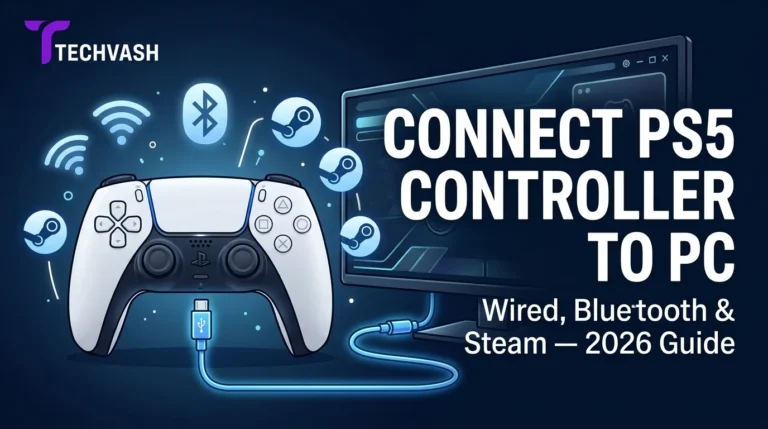
How to Connect a PS5 Controller to PC in 2026 (Wired, Bluetooth & Steam)
You bought a PS5. You love the DualSense controller — the haptic feedback, the adaptive triggers, the way the touchpad doubles as a trackpad. Then you sit down at your PC and realize your $70 controller is sitting unused while you game with a cheap Xbox pad that doesn't feel half as good. Here's the good news: connecting a DualSense to your Windows PC in 2026 is straightforward, and more games support its advanced features natively than ever before. You don't need to be a software engineer to get it working. You need about five minutes and the right method for your setup. This guide covers every connection method — wired USB, Bluetooth, Steam Input, and DS4Windows — with exact steps for Windows 11. Pick the method that matches how you play, follow the steps, and you'll be gaming with your DualSense on PC within minutes. Before You Start: What You Need Hardware: Software: Important note about DualSense features: Haptic feedback and adaptive triggers only work through a wired USB connection in games that specifically support them. Over Bluetooth, the DualSense functions as a standard gamepad without advanced haptics or trigger resistance. If those features matter to you, use a wired connection. Method 1: Wired USB Connection (Simplest & Best Features) This is the fastest method and the only one that supports the DualSense's full feature set (haptics, adaptive triggers, touchpad, gyroscope, speaker). Step-by-Step: Step 1: Plug the USB-C end of your cable into the top of the DualSense controller. …
You bought a PS5. You love the DualSense controller — the haptic feedback, the adaptive triggers, the way the touchpad doubles as a trackpad. Then you sit down at your PC and realize your $70 controller is sitting unused while you game with a cheap Xbox pad that doesn’t feel half as good.
Here’s the good news: connecting a DualSense to your Windows PC in 2026 is straightforward, and more games support its advanced features natively than ever before. You don’t need to be a software engineer to get it working. You need about five minutes and the right method for your setup.
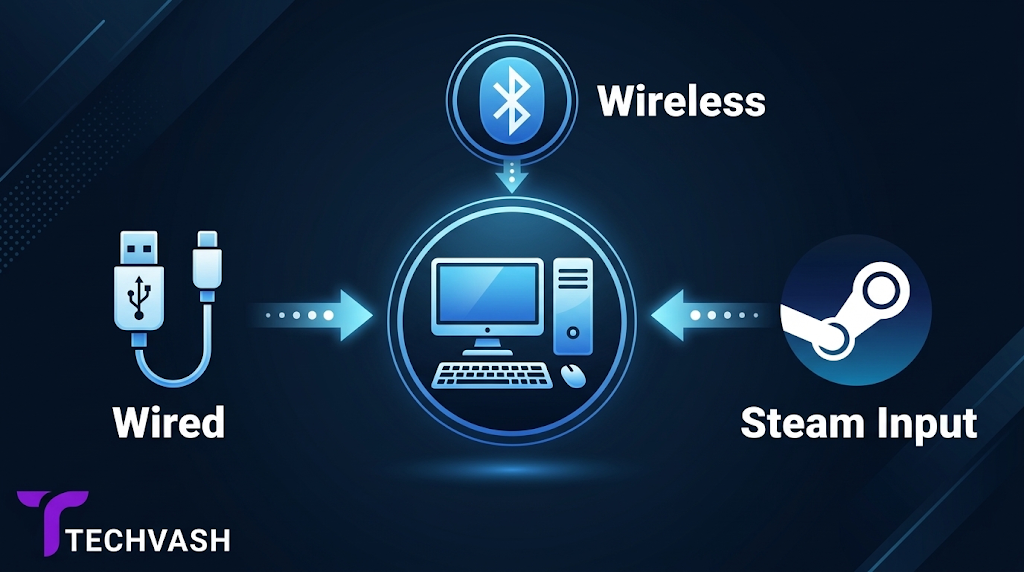
This guide covers every connection method — wired USB, Bluetooth, Steam Input, and DS4Windows — with exact steps for Windows 11. Pick the method that matches how you play, follow the steps, and you’ll be gaming with your DualSense on PC within minutes.
Before You Start: What You Need
Hardware:
A PS5 DualSense controller (standard or Edge)
A USB-C to USB-A or USB-C to USB-C cable (for wired connection)
A PC with Bluetooth 5.0 or later (for wireless connection — check in Settings > Bluetooth & devices > View more devices > your Bluetooth adapter)
Software:
Windows 11 (fully updated)
Steam (if you play Steam games — download from store.steampowered.com)
DS4Windows (if you play non-Steam games — download from ds4-windows.com, the Ryochan7 fork)
Important note about DualSense features: Haptic feedback and adaptive triggers only work through a wired USB connection in games that specifically support them. Over Bluetooth, the DualSense functions as a standard gamepad without advanced haptics or trigger resistance. If those features matter to you, use a wired connection.
Method 1: Wired USB Connection (Simplest & Best Features)
This is the fastest method and the only one that supports the DualSense’s full feature set (haptics, adaptive triggers, touchpad, gyroscope, speaker).
Step-by-Step:
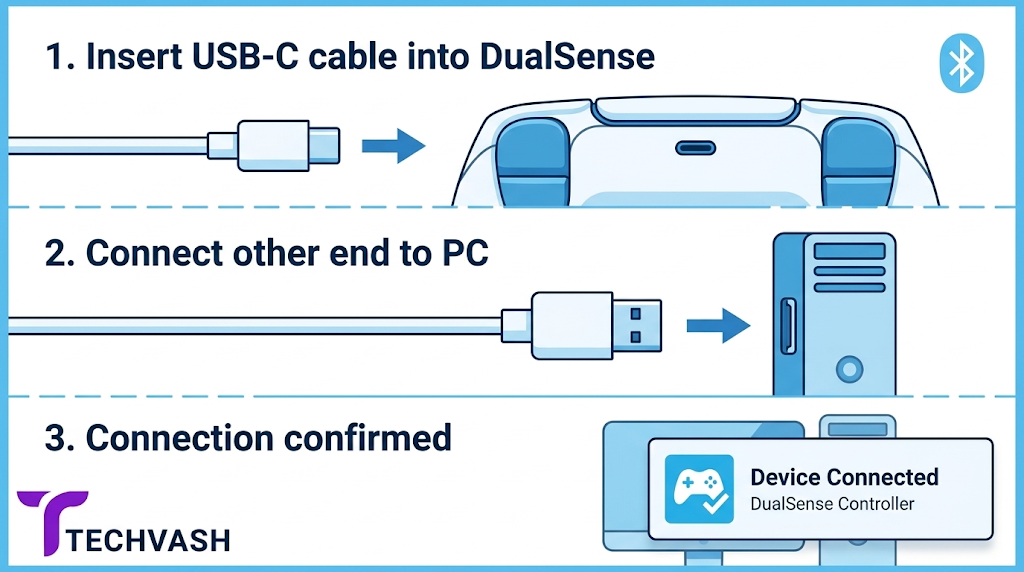
Step 1: Plug the USB-C end of your cable into the top of the DualSense controller.
Step 2: Plug the other end into a USB port on your PC. Use a USB 3.0 port (blue interior) or USB-C port for best results. USB 2.0 ports work but may cause latency issues with haptic feedback.
Step 3: Windows 11 will automatically detect the controller and install the generic gamepad driver. You’ll see a notification in the bottom-right corner confirming the device is connected. This takes 5–10 seconds.
Step 4: Press the PS button on the controller. The light bar around the touchpad should glow solid blue, indicating an active connection.
Step 5: Test the controller. Open the Windows Game Bar (press Windows + G) and click the controller icon to see if inputs register. Alternatively, visit gamepad-tester.com in your browser and press buttons to verify each input.
That’s it. For games that natively support the DualSense (Cyberpunk 2077, Returnal, Death Stranding Director’s Cut, Marvel’s Spider-Man Remastered, Horizon Forbidden West, and a growing list of others), haptic feedback and adaptive triggers will work automatically over USB. No additional software required.
For games that don’t natively support DualSense, you’ll need Steam Input or DS4Windows to translate the controller’s inputs into a format the game recognizes. See Methods 3 and 4 below.
Method 2: Bluetooth Wireless Connection
Bluetooth gives you wireless freedom but sacrifices haptic feedback, adaptive triggers, and the controller speaker. The touchpad and gyroscope may also have limited functionality depending on the game.
Step-by-Step:
Step 1: On your PC, open Settings > Bluetooth & devices. Make sure Bluetooth is toggled On.
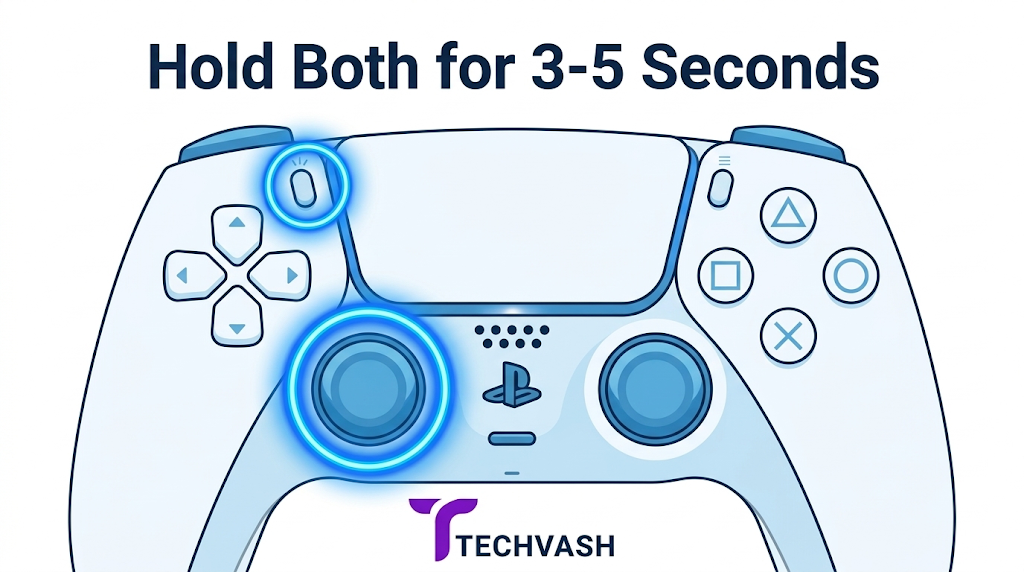
Step 2: Put the DualSense into pairing mode. Press and hold the PS button and the Create button (the small button to the left of the touchpad, formerly called the Share button) simultaneously for about 3–5 seconds. The light bar will begin flashing rapidly in blue, indicating the controller is discoverable.
Step 3: On your PC, click Add device > Bluetooth. Windows will scan for nearby devices.
Step 4: Select Wireless Controller from the list of discovered devices. Do not select “DualSense” or “PS5 Controller” — Windows identifies it as “Wireless Controller” over Bluetooth.
Step 5: Wait for the pairing confirmation. The light bar will change from flashing to a solid color (usually blue or purple). The controller is now connected.
Step 6: Test the connection using the Windows Game Bar (Windows + G) or gamepad-tester.com.
Bluetooth Limitations to Know:
No haptic feedback or adaptive triggers. These features require the higher bandwidth of a USB connection.
Higher input latency. Bluetooth adds roughly 5–15ms of latency compared to wired. This is imperceptible in casual games but may be noticeable in competitive FPS or fighting games.
Battery drain. The DualSense’s battery lasts roughly 6–8 hours over Bluetooth. Keep a USB-C cable handy for charging during long sessions.
Connection drops. Bluetooth interference from other devices (wireless headsets, Wi-Fi routers, other controllers) can cause occasional disconnections. If this happens, move your Bluetooth adapter closer to the controller or use a USB Bluetooth dongle with an external antenna.
To Disconnect Bluetooth:
Press and hold the PS button for 10 seconds until the light bar turns off. Alternatively, go to Settings > Bluetooth & devices, find “Wireless Controller,” click the three dots, and select Remove device.
Method 3: Steam Input (Best for Steam Games)
Steam Input is Valve’s built-in controller configuration system, and it has the best DualSense support of any gaming platform in 2026. It translates DualSense inputs into a format that any Steam game can understand, and it enables advanced features like touchpad mapping, gyroscope aiming, and custom button layouts.
Step-by-Step:
Step 1: Connect your DualSense to your PC using either Method 1 (wired) or Method 2 (Bluetooth).
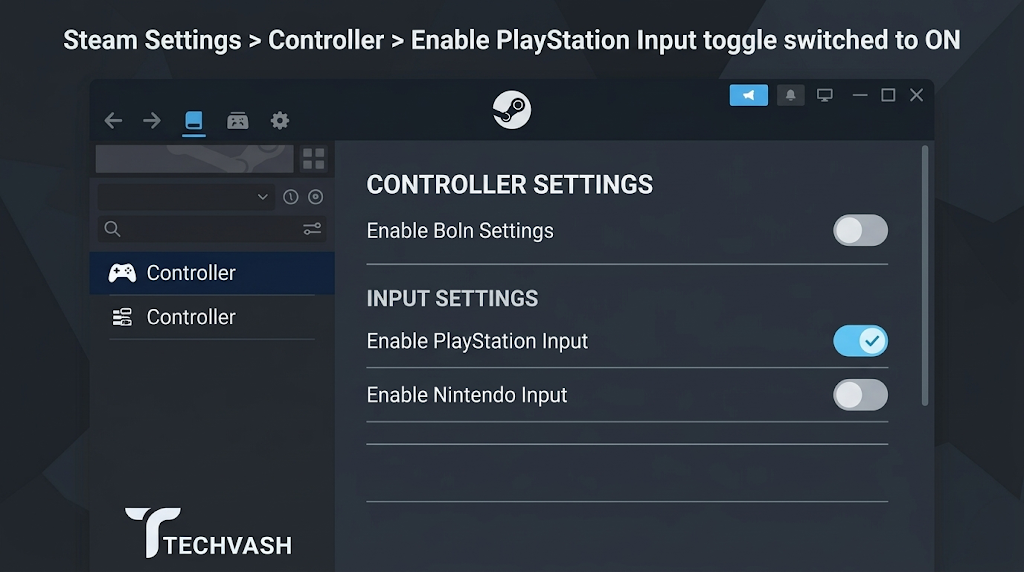
Step 2: Open Steam and click Steam > Settings in the top-left corner.
Step 3: Navigate to the Controller tab in the left sidebar.
Step 4: Under External Gamepad Settings, toggle Enable Steam Input for PlayStation controllers to On. Steam will detect your DualSense and display it in the detected controllers list.
Step 5: Click on your detected DualSense to open the configuration screen. Here you can:
Remap any button to any function
Configure the touchpad as a mouse trackpad, scroll wheel, or radial menu
Enable gyroscope aiming (tilt the controller to aim in supported games)
Adjust trigger dead zones and response curves
Create per-game profiles that automatically load when you launch specific titles
Step 6: Launch a game from your Steam library. Steam Input will automatically apply your configuration. The game will recognize the controller as an Xbox gamepad (XInput), which is the standard input format for most PC games.
Enabling DualSense Features Through Steam:
For games that support native DualSense features, Steam can pass through haptic feedback and adaptive triggers over a wired connection. To enable this:
Right-click the game in your Steam library and select Properties.
Go to the Controller tab.
Set the dropdown to Disable Steam Input. This allows the game to communicate directly with the DualSense over USB, enabling native haptics and adaptive triggers.
This is a per-game setting. Use Steam Input for games that don’t natively support DualSense, and disable it for games that do.
Method 4: DS4Windows (Best for Non-Steam Games)
If you play games from the Epic Games Store, Xbox Game Pass, GOG, or standalone launchers, Steam Input won’t help you. DS4Windows is a free, open-source tool that makes your DualSense appear as an Xbox 360 controller to any game on your PC, regardless of where you bought it.
Step-by-Step:
Step 1: Download DS4Windows from the official GitHub repository (ds4-windows.com, Ryochan7 build). Avoid downloading from third-party sites — they may bundle malware.
Step 2: Extract the downloaded ZIP file to a permanent location on your PC (e.g., C:\DS4Windows). Don’t run it from the Downloads folder.
Step 3: Launch DS4Windows.exe. On first run, the program will prompt you to install the ViGEmBus driver, which is required to emulate an Xbox controller. Click Install ViGEmBus Driver and follow the prompts. You may need to restart your PC after installation.
Step 4: Connect your DualSense via USB or Bluetooth (Methods 1 or 2 above). DS4Windows will detect the controller and display it in the Controllers tab with its battery level, connection type, and input status.
Step 5: DS4Windows will automatically create an Xbox 360 controller profile. Your DualSense inputs are now translated to XInput, which virtually every PC game supports. Launch any game and the controller should work immediately.
Step 6 (Optional): Customize your profile. Click Edit on the active profile to remap buttons, adjust stick dead zones, configure the touchpad as a mouse, enable gyroscope, and set up macro commands. DS4Windows offers deeper customization than Steam Input for advanced users.
DS4Windows Tips:
Run DS4Windows at startup. Go to Settings > General and check “Start DS4Windows at logon” so you don’t have to launch it manually every time you game.
Hide the real DualSense. In Settings, enable “Hide DS4 Controller” to prevent games from detecting both the real DualSense and the emulated Xbox controller simultaneously, which can cause double-input issues.
Use a wired connection for best compatibility. DS4Windows works over Bluetooth, but some features (touchpad, gyroscope) are more reliable over USB.
How to Enable Haptic Feedback and Adaptive Triggers on PC
This is the feature most PS5 owners want when connecting their DualSense to PC, and it’s the most misunderstood.
Haptic feedback and adaptive triggers only work when ALL of the following conditions are met:
Wired USB connection. Bluetooth does not support these features on PC.
A game that natively supports DualSense. The game must be programmed to send haptic and trigger data to the controller. This is not something you can force through software.
Steam Input disabled for that game (if playing through Steam). Steam Input overrides the native DualSense connection and emulates an Xbox controller, which strips out haptic data.
No third-party controller software running. DS4Windows, reWASD, and similar tools also override the native connection. Close them before launching a game that supports native DualSense features.
Games with confirmed native DualSense support on PC in 2026 include Cyberpunk 2077, Returnal, Death Stranding Director’s Cut, Marvel’s Spider-Man Remastered, Marvel’s Spider-Man: Miles Morales, Horizon Zero Dawn Remastered, Horizon Forbidden West, Ratchet & Clank: Rift Apart, The Last of Us Part I, Ghost of Tsushima Director’s Cut, Alan Wake 2, and a growing number of new releases. Check the game’s store page or settings menu for “DualSense” or “PlayStation controller features” to confirm support.
Troubleshooting Common Issues
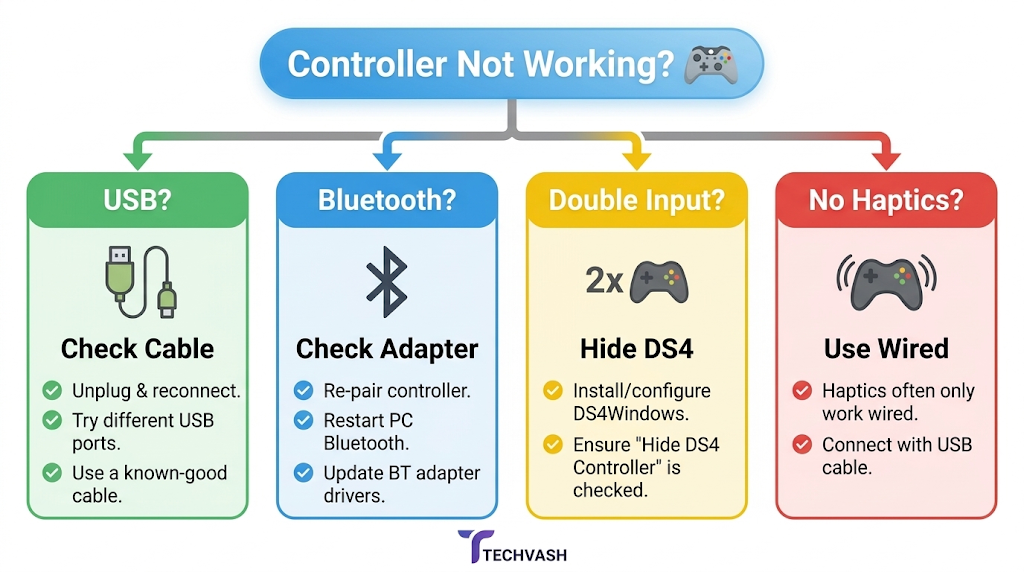
Controller not detected over USB: Try a different USB-C cable. Many USB-C cables are charge-only and don’t transmit data. Use the cable that came with your PS5 or a certified data-transfer USB-C cable. Also try a different USB port — front panel ports sometimes have insufficient power.
Controller not detected over Bluetooth: Ensure your PC’s Bluetooth adapter supports Bluetooth 5.0 or later. Older adapters (4.0 and below) may struggle with DualSense pairing. Update your Bluetooth driver through Device Manager > Bluetooth > right-click your adapter > Update driver. If problems persist, a USB Bluetooth 5.3 dongle (under $15) resolves most compatibility issues.
Double input (controller registers two presses per button): This happens when both the real DualSense and the emulated Xbox controller are active simultaneously. In DS4Windows, enable “Hide DS4 Controller.” In Steam, ensure Steam Input is either fully enabled or fully disabled for the game — partial configurations cause conflicts.
Haptic feedback not working in a supported game: Confirm you’re using a wired USB connection, Steam Input is disabled for that specific game, and no third-party controller software is running in the background. Also check the game’s audio settings — some games route haptic data through the audio channel, and if the DualSense speaker is muted in Windows sound settings, haptics may not function.
Controller disconnects randomly over Bluetooth: Reduce Bluetooth interference by moving other wireless devices away from your PC. Update your Bluetooth adapter’s firmware. If the issue persists, switch to a wired connection for competitive gaming and reserve Bluetooth for casual sessions.
Light bar flashing orange and won’t connect: The controller’s battery is critically low. Connect it via USB-C and let it charge for at least 15 minutes before attempting to pair again.
Frequently Asked Questions
Can I use a PS5 DualSense Edge controller on PC? Yes. The DualSense Edge connects to PC using the same methods as the standard DualSense — wired USB, Bluetooth, Steam Input, and DS4Windows all work identically. The Edge’s additional features (back buttons, adjustable stick modules, trigger stops) function as extra inputs that you can map through Steam Input or DS4Windows profiles.
Does the PS5 controller work with Xbox Game Pass on PC? Yes, but you’ll need DS4Windows or Steam Input to translate the DualSense inputs into XInput format, since Game Pass games expect an Xbox controller. Connect the DualSense, launch DS4Windows, and your Game Pass games will recognize it as an Xbox controller automatically.
Can I use the DualSense touchpad as a mouse on PC? Yes. Both Steam Input and DS4Windows allow you to map the touchpad to mouse cursor movement, left-click, right-click, and scroll. In Steam Input, go to the controller configuration and set the touchpad behavior to “Mouse.” In DS4Windows, edit your profile and assign the touchpad to mouse emulation. This is useful for navigating menus in games that don’t have full controller support.
Do I need to install drivers for the DualSense on Windows 11? No. Windows 11 includes generic gamepad drivers that recognize the DualSense automatically when connected via USB or Bluetooth. You only need additional software (Steam Input or DS4Windows) if you want to use the controller in games that don’t natively support PlayStation controllers.
Can I use the DualSense gyroscope for aiming on PC? Yes, in games that support it natively (like The Last of Us Part I) or through Steam Input’s gyroscope configuration. In Steam Input, go to the controller layout for your game, select the gyroscope tab, and assign it to mouse joystick behavior. This lets you tilt the controller for fine aim adjustments while using the right stick for larger movements.
Will using a PS5 controller on PC void my warranty? No. Connecting your DualSense to a PC via USB or Bluetooth is a standard use case supported by Sony. It does not void your warranty. The only warranty risk would be physical damage from dropping the controller or liquid exposure, which applies regardless of which device you connect it to.
Quick-Reference: Which Method Should You Use?
Your Situation
Best Method
Playing Steam games, want easy setup
Method 3: Steam Input
Playing non-Steam games (Epic, Game Pass, GOG)
Method 4: DS4Windows
Want haptic feedback and adaptive triggers
Method 1: Wired USB + disable Steam Input
Want wireless convenience for casual gaming
Method 2: Bluetooth
Want the absolute simplest plug-and-play
Method 1: Wired USB
Playing competitive FPS, need lowest latency
Method 1: Wired USB
The Bottom Line
Connecting a PS5 DualSense controller to your PC in 2026 takes about five minutes regardless of which method you choose. Wired USB gives you the best experience with full feature support. Bluetooth gives you wireless freedom at the cost of advanced haptics. Steam Input handles translation for Steam games. DS4Windows handles everything else.
Pick the method that matches your gaming setup, follow the steps, and stop letting that excellent DualSense collect dust next to your console.